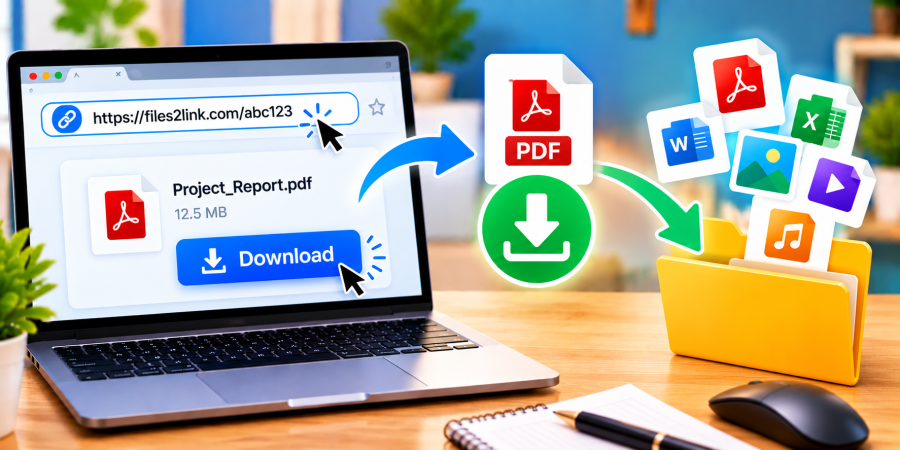
How to Open and Download Files from a Shared Link
Oct 29, 2026 06:39 AM
Kaushik Sampat
How to Open and Download Files from a Shared Link
Receiving a file link is a convenient way to access documents, photos, videos, and other files without email attachments. However, you may sometimes be unsure how to open the link or save the file to your computer. With Files2Link.com, you can upload files and share their links. Follow these simple instructions to access files shared through a link.
Why Use Shared File Links?
A shared link lets you access a file without receiving it as a traditional email attachment. People use file links to share PDFs, Word documents, spreadsheets, images, videos, audio recordings, and ZIP archives.
Links can be shared through email, WhatsApp, or other messaging platforms. Depending on the service, you may be able to preview a file in your browser or download it directly to your device.
How to Open and Download a File from a Shared Link
Step 1: Open the Link
Find the file link in your email or message. Click or tap it to open the destination in your web browser. If the link does not open, check that you copied the complete address without missing any characters.
Step 2: Check the File Details
Before downloading, check the filename and file type, if displayed. Make sure the file is the one you expected. If you do not recognise the sender or were not expecting the link, verify it before proceeding.
Step 3: Find the Download Option
On the page that opens, look for a button or option labelled Download or a similar instruction. Follow the website’s steps to start downloading the file. Some file types may open in the browser instead; look for the available download control if you want to save a copy.
Step 4: Choose Where to Save the File
Depending on your browser settings, the file may download automatically to your default Downloads folder, or you may be asked where to save it. On Windows, open File Explorer and select Downloads to locate recently downloaded files.
Step 5: Open the Downloaded File
Once the download finishes, open the file using a compatible application. For example, PDFs need a PDF reader or compatible browser, while spreadsheets may be opened in Microsoft Excel or another spreadsheet application.
What If the Shared Link Does Not Work?
If a link fails to open or download, check your internet connection and make sure the address is complete. Try refreshing the page or opening the link in another browser. The file may have been removed, the link may have expired, or the service may have temporary problems. Contact the sender for a fresh link if necessary.
Stay Safe When Downloading Files
Download files only from trusted sources. Be cautious with unexpected links, unfamiliar file types, and pages asking you to install unknown software. Keep your browser and security software updated, and scan suspicious downloads before opening them.
Conclusion
Opening and downloading files through a shared link is usually straightforward. Open the link, check the file details, follow the download instructions, and locate the saved file on your device. Using services such as Files2Link.com can make sharing and receiving files more convenient when you follow sensible safety precautions.
Login or create account to leave comments
Popular articles
How to Create a Shareable Link for Word Documents
Oct 27, 2026 07:48 AM
How to Choose the Right Online File-Sharing Tool
Oct 29, 2026 07:39 AM
Common File Formats Explained
Oct 29, 2026 07:34 AM
How to Convert Any File into a Shareable Link
Oct 27, 2026 05:31 AM
Direct Download Links vs. File-Sharing Links: What's the Dif...
Oct 27, 2026 07:21 AM
Categories
Comments (0)