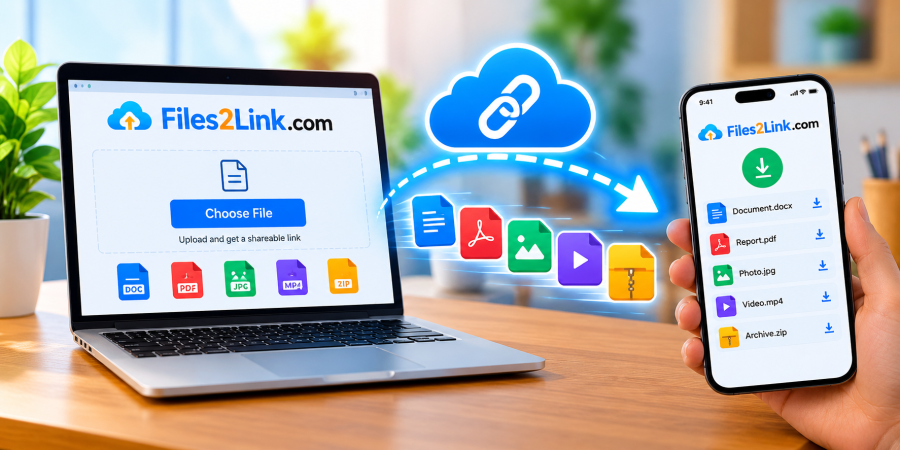
How to Share Files Between a Computer and Mobile
Oct 29, 2026 07:05 AM
Kaushik Sampat
How to Share Files Between a Computer and Mobile
Sharing files between a computer and a mobile phone is a common need for students, professionals, content creators, and everyday users. Whether you want to transfer photos, documents, videos, PDFs, or other files, choosing a simple method can save time and effort.
Instead of struggling with cables, incompatible apps, or complicated transfer steps, you can use Files2Link.com (F2L) to create shareable links for your files. This makes it easier to access and share files across devices whenever you have an internet connection.
Why Share Files Between a Computer and Mobile?
Your computer may contain important documents, work files, downloaded videos, or photographs that you want to access on your smartphone. Similarly, you might have pictures, recordings, and documents on your mobile that you need to open on your computer.
A convenient file-sharing method helps you:
-
Access important files on different devices.
-
Share documents without repeatedly attaching them to emails.
-
Send photos and videos to friends, family, or colleagues.
-
Make files easier to access when switching between devices.
-
Share files with someone who uses a different operating system.
How to Share Files Using Files2Link.com
Files2Link.com offers a practical way to share files through links. Instead of relying entirely on a direct device-to-device connection, you can upload a file and use its generated link to access it from another device, subject to the service's available features.
Step 1: Open Files2Link.com
Open Files2Link.com in a web browser on your computer or mobile phone.
Step 2: Select Your File
Choose the file you want to share from your device. Depending on the website's supported formats and upload limits, this could be a document, image, video, or another type of file.
Step 3: Upload the File
Follow the on-screen instructions to upload your selected file. Wait until the upload finishes before proceeding.
Step 4: Generate and Copy the Link
Once the upload is complete, use the available option to generate or copy the shareable link.
Step 5: Open the Link on Your Other Device
Send the link to yourself through a suitable messaging app, email, or another convenient method. Open it in the browser on your second device to access the shared file.
For example, upload a document from your computer, open its link on your smartphone, and download the document if that option is available.
Helpful Tips for Better File Sharing
Check your internet connection: A stable connection helps prevent interruptions, especially when uploading large videos or multiple files.
Verify the file: Before sharing the link, confirm that you selected the correct document, image, or video.
Protect private information: Share sensitive files only with intended recipients. Anyone who can access an unrestricted link may be able to view or download its contents.
Keep a backup: Store important files in a separate location so you do not depend entirely on a shared link.
Check file limits: Review the website's current upload restrictions and available sharing options before transferring large files.
Conclusion
Sharing files between a computer and mobile phone does not need to be complicated. Files2Link.com provides a link-based approach that can make files easier to access across devices without relying solely on cables or installing a dedicated transfer application.
Visit Files2Link.com to explore its available file-sharing features and find a convenient way to share your files.
Login or create account to leave comments
Popular articles
How to Create a Shareable Link for Word Documents
Oct 27, 2026 07:48 AM
How to Choose the Right Online File-Sharing Tool
Oct 29, 2026 07:39 AM
Common File Formats Explained
Oct 29, 2026 07:34 AM
How to Convert Any File into a Shareable Link
Oct 27, 2026 05:31 AM
Direct Download Links vs. File-Sharing Links: What's the Dif...
Oct 27, 2026 07:21 AM
Categories
Comments (0)