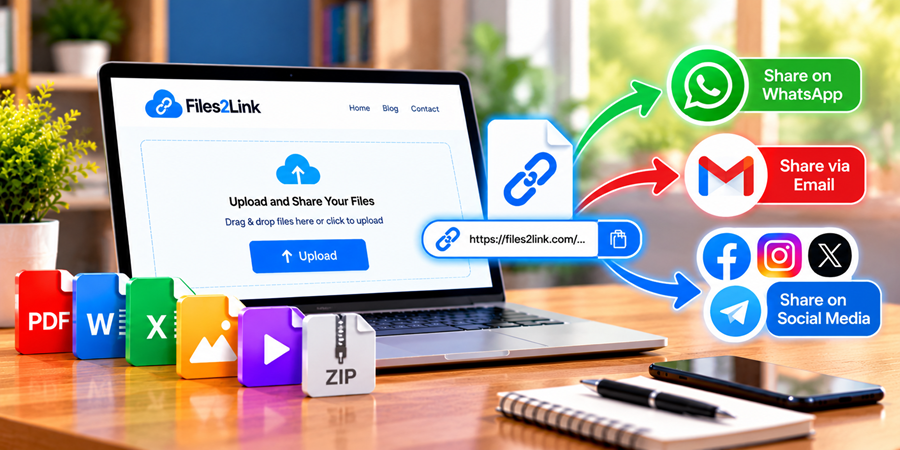
How to Share Files Using WhatsApp, Email, and Social Media
Oct 27, 2026 07:14 AM
Kaushik Sampat
Sharing files online has become part of everyday life. People send photographs, documents, videos, and presentations to friends, family members, colleagues, and clients. WhatsApp, email, and social media are popular ways to communicate, but sending files as attachments is not always convenient.
Files2Link.com offers another option: upload a supported file and create a shareable link. You can then send that link through your preferred communication platform instead of attaching the same file repeatedly.
Why Share Files Using Links?
File-sharing links can simplify the process of sending digital content. Rather than attaching a file separately to several messages, you can copy one link and share it with the intended recipients.
This approach can be useful when sharing documents with colleagues, photographs with family, or other supported files with friends. Always check the service's upload limits and link settings before sharing.
How to Create a Shareable File Link
Step 1: Visit Files2Link.com
Open Files2Link.com in your web browser. Locate the Upload button on the homepage.
Step 2: Select Your File
Click Upload and choose the file you want to share from your computer or mobile device. Make sure you select the correct file and check that its format and size meet the website's current requirements.
Step 3: Upload and Generate the Link
Follow the instructions displayed on the website to upload your file and generate a shareable link. Wait until the upload process finishes before copying the link.
Step 4: Share Your Link
Once the link is ready, copy it. You can now share it through different communication platforms.
How to Share File Links on Different Platforms
Sharing Through WhatsApp
Open the WhatsApp conversation with the intended recipient, paste the copied link into the message box, and send it. The recipient can open the link if it is accessible and still valid.
Sharing Through Email
Open your email application and compose a message. Add the recipient's email address, write a short explanation, and paste the file link into the message. This can be a convenient alternative when attaching a file is impractical.
Sharing Through Social Media
You can share a file link through a suitable social media message or post, depending on the platform's rules and settings. Consider your audience before posting a link publicly, especially if the file contains personal information.
Tips for Sharing Files Safely
Follow these simple precautions when sharing links online:
- Check the file: Confirm that you have uploaded the correct content.
- Protect private information: Avoid uploading confidential files unless you understand the service's privacy and access arrangements.
- Review link expiry: Check how long the link remains available.
- Choose recipients carefully: Anyone who obtains a link may be able to access the file, depending on its access settings.
- Test before sharing: Open the link to make sure it works as expected.
Frequently Asked Questions
1. Can I share a file link through WhatsApp?
Yes. You can paste a shareable link into a WhatsApp conversation, provided the link is accessible to the recipient.
2. Can I send a file link through email?
Yes. Copy the generated link and paste it into your email message instead of attaching the file directly.
3. Can I share links on social media?
You can share links on platforms that permit them, subject to their rules and the file link's availability.
Conclusion
Sharing files through WhatsApp, email, and social media can be convenient when you have a working link. Files2Link.com helps you upload supported files and create links that you can send to your intended recipients.
Visit Files2Link.com to explore a convenient way to share files online.
Login or create account to leave comments
Popular articles
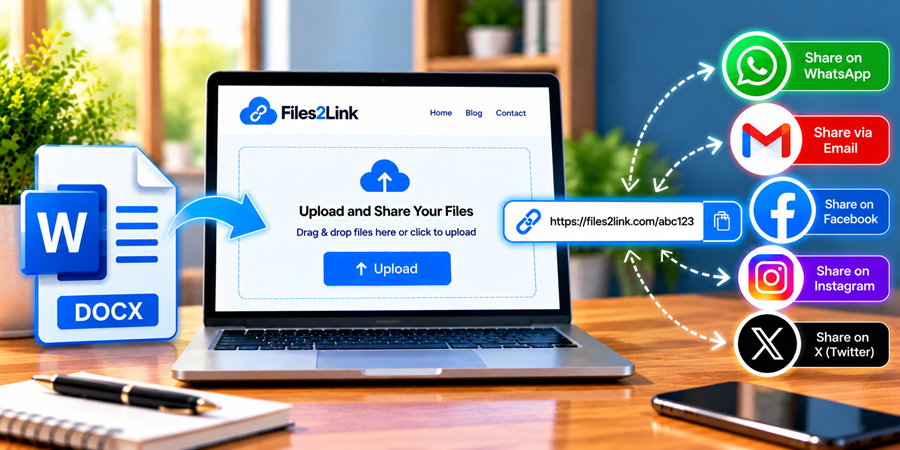
How to Create a Shareable Link for Word Documents
Oct 27, 2026 07:48 AM
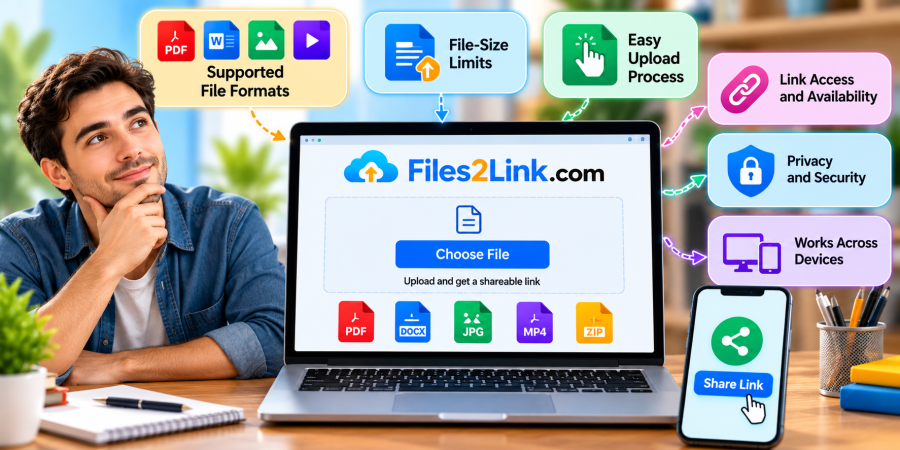
How to Choose the Right Online File-Sharing Tool
Oct 29, 2026 07:39 AM
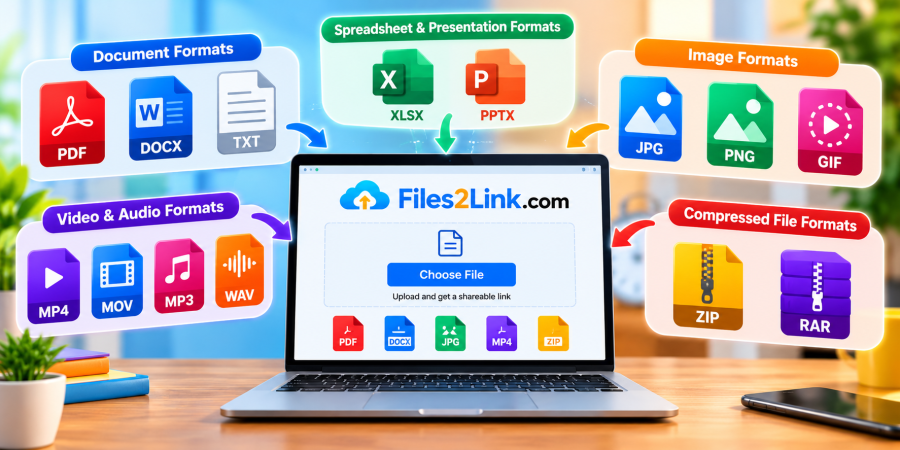
Common File Formats Explained
Oct 29, 2026 07:34 AM
How to Convert Any File into a Shareable Link
Oct 27, 2026 05:31 AM
Direct Download Links vs. File-Sharing Links: What's the Dif...
Oct 27, 2026 07:21 AM
Categories
Comments (0)