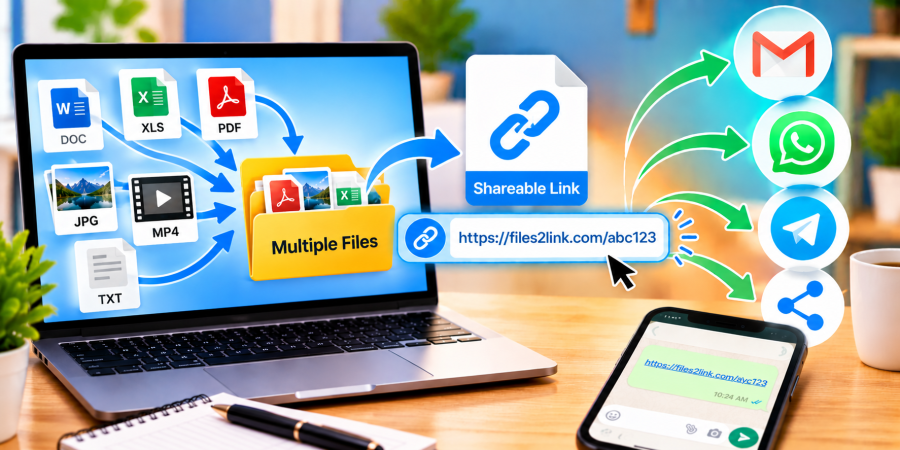
How to Share Multiple Files with One Link
Oct 29, 2026 06:34 AM
Kaushik Sampat
How to Share Multiple Files with One Link
Sending several files separately can make email and messaging conversations messy. You may need to share photos, PDFs, spreadsheets, or project materials with the same person or group. A single link can simplify the process. Visit Files2Link.com and follow its upload instructions to create a shareable link for your files or a ZIP archive containing them.
Why Share Multiple Files with One Link?
One link is easier to copy and track than a long list of attachments. It can also help recipients find related documents in one place.
The best method depends on the website’s upload options. If Files2Link.com lets you select multiple files in one upload, follow the on-screen instructions. If it accepts one file at a time, combine your files into a ZIP archive first and share the archive’s link.
How to Share Multiple Files Using Files2Link.com
Step 1: Organise Your Files
Put the files in one folder on your computer. Check that each file is the correct version, remove duplicates, and use clear filenames so recipients can identify the contents.
Step 2: Combine Files if Needed
If the upload page does not support selecting multiple files, create a ZIP archive. On Windows, select the files, right-click, and choose the available option to compress them into a ZIP file. The wording can vary by Windows version. Give the archive a name such as “Project-Documents.zip.”
Step 3: Upload to Files2Link.com
Visit Files2Link.com and follow the website’s current instructions to upload your files or ZIP archive. Check any displayed size limits and supported formats. Keep the original folder as a backup.
Step 4: Copy and Share the Link
When the upload finishes, follow the instructions to copy the shareable link. Send it through email, WhatsApp, or another messaging platform, with a short explanation of the files included. You can send the same link to each intended recipient.
Step 5: Test the Link
Open the link yourself or ask a trusted recipient to test it. Confirm that it points to the right content and that the download works before sharing it more widely.
Tips for Safer File Sharing
Review every file before uploading. Remove confidential information, passwords, private records, or anything you do not have permission to share. A link is not automatically private; access depends on the service’s features and settings. Share it only with intended recipients.
Compressing a collection can make it easier to manage, although it may not reduce the size much for already-compressed images or videos. If the archive is too large, remove unnecessary items or split it into smaller archives.
Conclusion
Sharing multiple files through one link can save time and keep messages organised. With Files2Link.com, upload your files using the available method—or package them into a ZIP archive when needed—then copy and share the link. Organise the files, test access, and protect sensitive information before sending.
Login or create account to leave comments
Popular articles
How to Create a Shareable Link for Word Documents
Oct 27, 2026 07:48 AM
How to Choose the Right Online File-Sharing Tool
Oct 29, 2026 07:39 AM
Common File Formats Explained
Oct 29, 2026 07:34 AM
How to Convert Any File into a Shareable Link
Oct 27, 2026 05:31 AM
Direct Download Links vs. File-Sharing Links: What's the Dif...
Oct 27, 2026 07:21 AM
Categories
Comments (0)