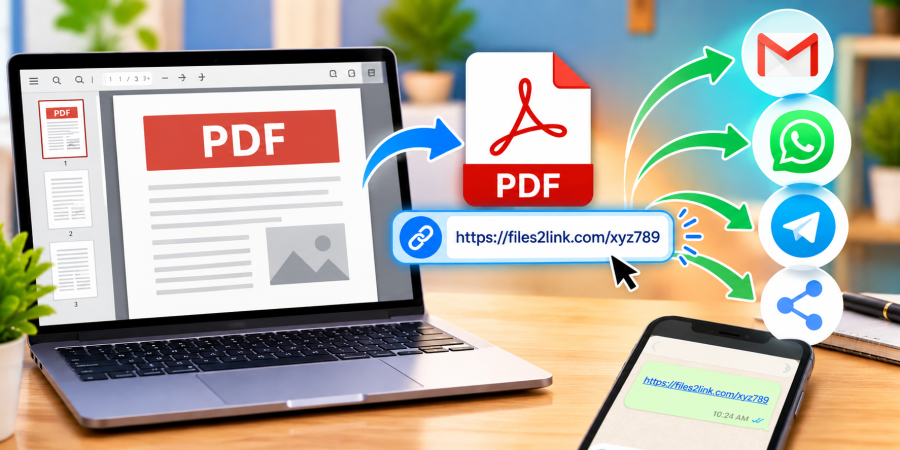
How to Share PowerPoint Presentations Using a Link
Oct 29, 2026 06:07 AM
Kaushik Sampat
How to Share PowerPoint Presentations Using a Link
PowerPoint presentations are useful for school projects, business meetings, training sessions, and academic assignments. However, sending large presentation files through email can sometimes be inconvenient because of attachment size limits. A simple alternative is to use Files2Link.com to upload your presentation and share it using a link instead of attaching the file directly to your message.
Why Share PowerPoint Presentations Using a Link?
A shareable link makes it easier to distribute presentations through email, WhatsApp, and other messaging platforms. Rather than repeatedly attaching the same PowerPoint file, you can share its link with multiple recipients.
This approach can also help keep email messages organised. Recipients can access the shared link and download the presentation when needed, subject to the file-sharing service's available access and download options.
How to Share a PowerPoint Presentation Using Files2Link.com
Follow these steps to share your presentation online.
Step 1: Prepare Your Presentation
Find your PowerPoint file on your computer. Presentations commonly use the PPTX or PPT format. Save your latest changes and check that you have selected the correct version before uploading it.
Step 2: Visit Files2Link.com
Open your preferred web browser and visit Files2Link.com. Follow the instructions displayed on the website to upload your presentation. Check that your file meets any applicable upload limits.
Step 3: Obtain the Shareable Link
After uploading the presentation, follow the website's instructions to obtain its shareable link. Copy the link carefully so you can send it to the intended recipients.
Step 4: Send the Link
Open your email application or messaging platform and paste the copied link into your message. Add a brief explanation so recipients know what the presentation contains, then send the message.
Step 5: Check Access
Where possible, test the link yourself before sharing it widely. Confirm that it opens the intended file and that recipients can access the download page. Avoid sharing links publicly when the presentation contains confidential information.
Tips for Sharing Presentations Successfully
Before uploading a presentation, review its slides for private information, unpublished business details, personal data, and confidential notes. Remove anything that recipients should not see.
If the presentation contains large images, audio, or video clips, check the file size before uploading. Compressing unnecessary media may help reduce the file size. Keep an original copy on your computer so you can make changes or recover the presentation later.
Remember that sharing a download link is not the same as collaborative editing. If several people need to edit slides together in real time, use a presentation service that specifically supports collaborative editing.
Conclusion
Sharing PowerPoint presentations through a link can be a convenient alternative to email attachments. With Files2Link.com, you can upload your presentation, obtain a shareable link, and distribute it through your preferred communication platform. Follow these simple steps and safety tips to make sharing presentations easier and more organised.
Login or create account to leave comments
Popular articles
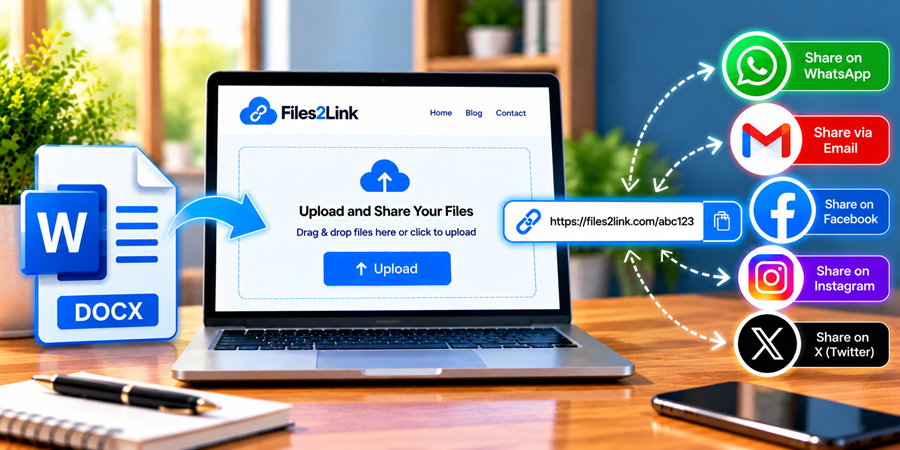
How to Create a Shareable Link for Word Documents
Oct 27, 2026 07:48 AM

How to Choose the Right Online File-Sharing Tool
Oct 29, 2026 07:39 AM
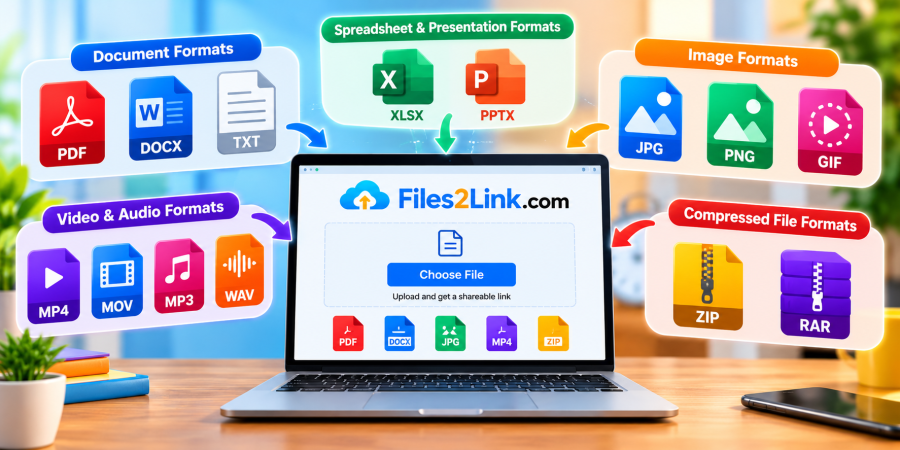
Common File Formats Explained
Oct 29, 2026 07:34 AM

How to Convert Any File into a Shareable Link
Oct 27, 2026 05:31 AM
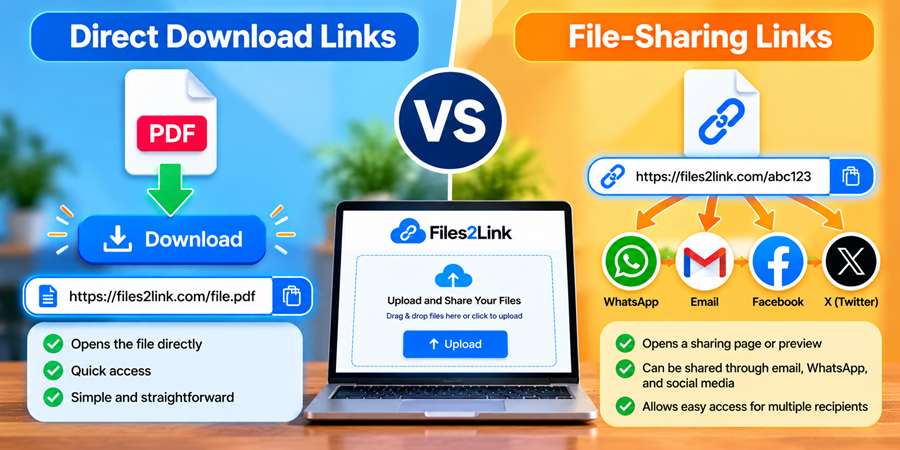
Direct Download Links vs. File-Sharing Links: What's the Dif...
Oct 27, 2026 07:21 AM
Categories
Comments (0)